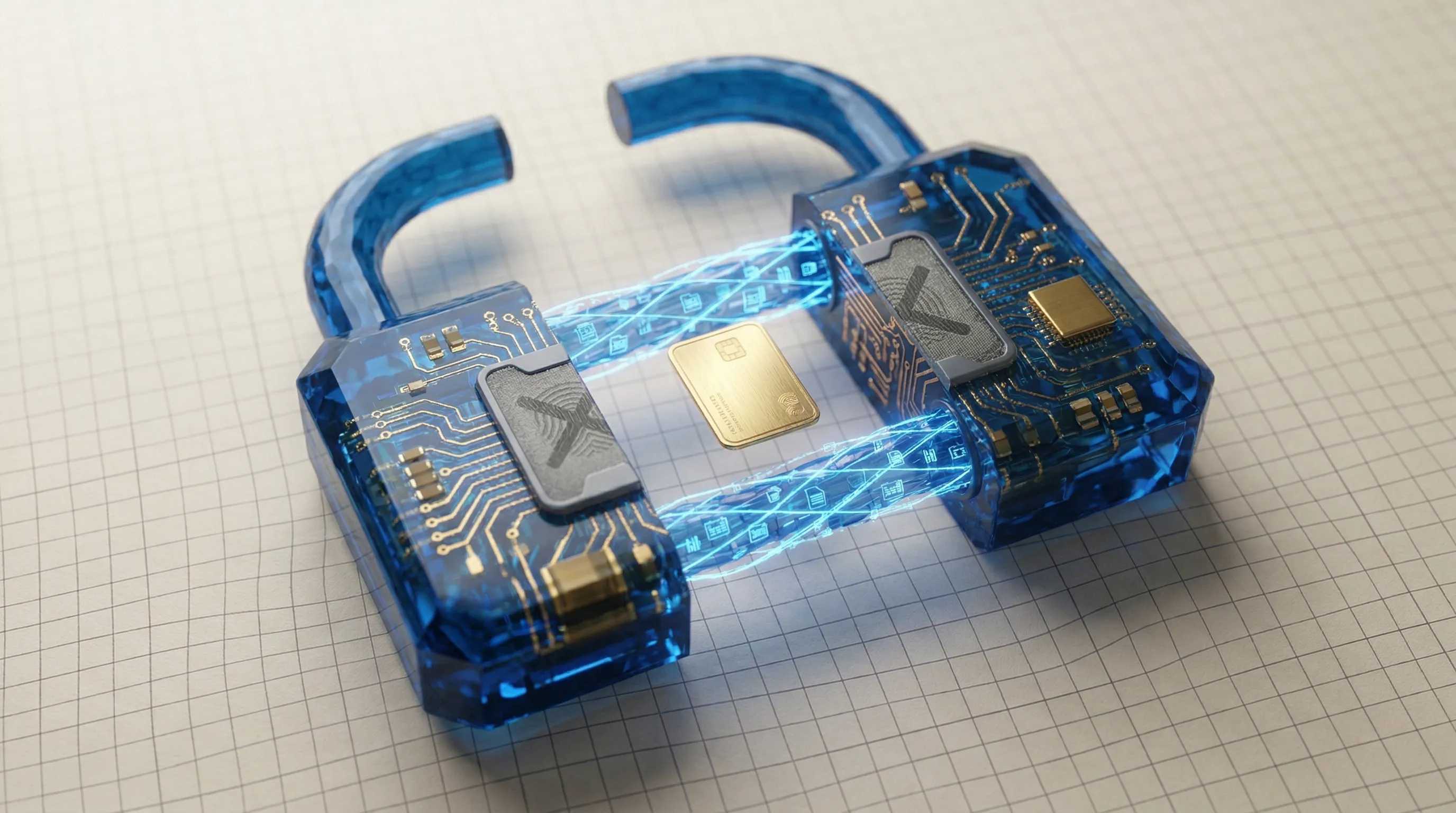
SSH and the Boundaries of macOS Security
software development
Srđan Marković
CTO
Addressing the SSH complexity in macOS secret management - biometric blocking, keychain session isolation, and the 1Password Service Account solution for headless remote sessions.
Parts 1 and 2 work flawlessly for local GUI terminal sessions. The Keychain unlocks automatically on login, 1Password authenticates via Touch ID, and secrets load invisibly at shell startup. But the moment you SSH into your workstation remotely, the architecture hits the deliberate security boundaries of macOS.
This is an increasingly common scenario. Developers run AI coding agents on powerful desktop machines and manage them remotely from laptops, tablets, or mobile SSH clients like Termius. The local setup from Parts 1 and 2 breaks in three distinct ways over SSH:
- Biometric blocking. 1Password Touch ID opens a dialog on the machine’s physical display. Over SSH, there is no one to tap it. The shell blocks indefinitely.
- Keychain session isolation. macOS Keychain unlock state is per-login-session. Unlocking the keychain from a local GUI terminal does not carry over to SSH sessions. There is no PAM module, no
sshd_configoption, and nolaunchdmechanism to bridge this gap. - Silent failures. Over SSH,
security find-generic-passwordfails silently unless the keychain is explicitly unlocked in that session.
These are not bugs. They are intentional security constraints designed to prevent remote exfiltration. But they break automated shell startup.
The Solution: 1Password Service Accounts
The approach that worked for us was 1Password Service Accounts. These provide token-based authentication with read-only access to a specific vault, requiring no biometric input and no interactive password.
The setup is a one-time operation from a local GUI terminal:
# One-time setup per machine (from local GUI terminal):
# 1. Sign in to 1Password.com > "Developer Tools" > "Service Accounts".
# 2. Create a service account (e.g., "CLI SSH Access").
# 3. Grant it "Read" access to your "CLI" vault.
# 4. Copy the generated token, then run:
mkdir -p ~/.config/op
read -s "token?Enter 1Password Service Account Token: "
echo
echo "$token" > ~/.config/op/.sa-token
chmod 400 ~/.config/op/.sa-token
unset token
The token file is chmod 400, readable only by the owning user. The read -s prompt ensures the token never appears in shell history.
The Hybrid Loading Logic
The final .zshrc detects the session type via $SSH_CONNECTION and routes to the appropriate authentication path. This uses _keychain_get and the _SECRETS array defined in Part 1, and the op inject pattern from Part 2:
# ~/.zshrc - session-aware secret loading

if [[ -n "$SSH_CONNECTION" ]]; then
  if [[ -r ~/.config/op/.sa-token ]]; then
    export OP_SERVICE_ACCOUNT_TOKEN="$(cat ~/.config/op/.sa-token)"
    _tpl=""
    for _key in "${_SECRETS[@]}"; do
      _tpl+="export ${_key}=\"op://${OP_VAULT}/${_key}/password\""$'\n'
    done
    eval "$(echo "$_tpl" | op inject)" 2>/dev/null || _SECRETS=()
  else
    # Fallback: unlock login Keychain (prompts for password once)
    if security unlock-keychain ~/Library/Keychains/login.keychain-db 2>/dev/null; then
      for _key in "${_SECRETS[@]}"; do
        export "$_key"="$(_keychain_get "$_key")"
      done
    fi
    _SECRETS=()
  fi
elif [[ "$SECRET_BACKEND" == "op" ]]; then
  # Local + 1Password
  _tpl=""
  for _key in "${_SECRETS[@]}"; do
    _tpl+="export ${_key}=\"op://${OP_VAULT}/${_key}/password\""$'\n'
  done
  eval "$(echo "$_tpl" | op inject)"
else
  # Local + Keychain
  for _key in "${_SECRETS[@]}"; do
    export "$_key"="$(_keychain_get "$_key")"
  done
fi
Figure 1: The complete loading logic. SSH sessions use a service account token; local sessions route through the configured backend.
The Complete Matrix
The resulting behavior covers every combination:
| Session | Backend | Authentication | Startup Time |
|---|---|---|---|
| Local | Keychain | Auto-unlocked on GUI login | ~0.9s |
| Local | 1Password | Touch ID per session | ~1.5s |
| SSH | Service Account | Token file, no prompts | ~1.5s |
| SSH | Keychain (fallback) | macOS password once per login | ~0.9s |
The SSH + Service Account path is the cleanest: the token file authenticates silently, op inject resolves all keys in a single call, and the shell starts without any interactive prompt.
The SSH + Keychain fallback exists for engineers who have not set up 1Password. It prompts for the macOS login password once via security unlock-keychain, then loads normally. Not as smooth, but functional.
The End of Plaintext
Across these three articles, the architectural shift amounts to under 100 lines of shell logic. It maintains exactly the same developer experience. printenv works, scripts execute flawlessly, and AI agents have the environment variables they need in runtime memory. But the structural vulnerability is gone. Your credentials live in a secure store, invisible to the code assistants operating in your terminal.
That is worth 100 lines of shell.